
Support
Something not working, a word that sounds off, or an idea? Tell us. Every report is read by the person who builds the app.
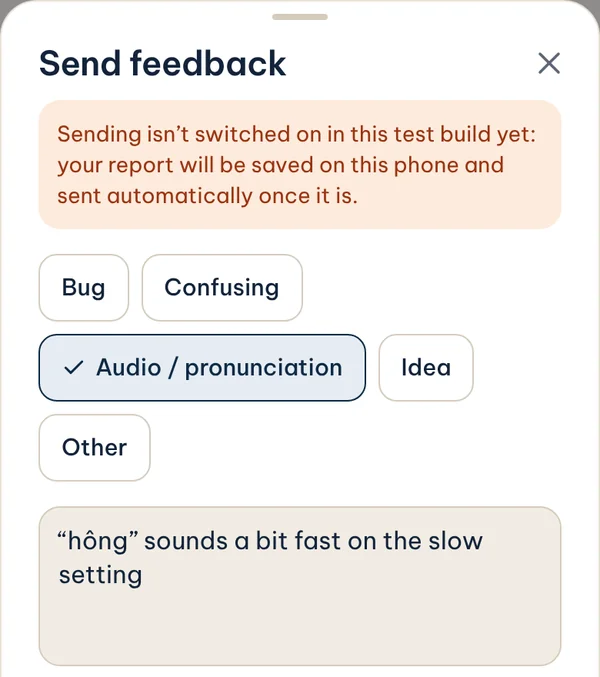
Send feedback from the app
- Tap the speech-bubble button at the top right of the screen you’re on. You can also go to Settings › Feedback › Send feedback.
- Pick what it’s about: Bug, Confusing, Audio / pronunciation, Idea or Other, and write a short message.
- Leave Include what I was doing on if you can. It tells us which screen and word you were on, so we can find the problem fast. Tap See details to read exactly what is sent.
- Add a name or email only if you’d like a reply, then tap Send.
No connection? The report is saved on your phone and sent automatically later. In some test builds the button says Save report: the report waits on your phone until a build that can send it is installed. You can always tap Copy report and paste it into an email to us.
Read what a report contains in the privacy policy.
Email us
hello@alosaigon.com
Common questions
How do I install the web app?
Open alosaigon.com/app, then:
- Android: in Chrome, tap Install when it’s offered, or the install icon in the address bar (or ⋮ › Add to Home screen).
- iPhone and iPad: in Safari, tap Share, then Add to Home Screen.
- Computer: in Chrome or Edge, click the install icon at the right of the address bar.
It then opens from your home screen like any other app. Your progress is saved in that browser on that device.
I can’t hear any sound
- Turn up your phone’s media volume (press a volume button while a word is playing). On iPhone, check the silent switch, or turn on Settings › Audio › Play on silent in the app.
- If you tapped Can’t listen now during a lesson, listening exercises are off for 15 minutes. A small “Listening off” label appears on the Home and Settings screens; tap Turn on to bring them back early.
- Check that Autoplay audio is on in Settings › Audio if you want words to play by themselves. You can always tap the speaker button.
- Connected to Bluetooth headphones or a speaker? The sound may be playing there.
- Some example sentences don’t have their own recording yet and are read by your phone’s text-to-speech. If Settings › Audio says Vietnamese voice: Not installed, add one on Android in Settings › System › Languages › Text-to-speech › Google › Install voice data › Vietnamese (the exact menu names vary by phone).
Say it says the microphone is off
Say it needs the microphone; the rest of the app works without it. To turn it back on, on Android:
- On the Say it screen, tap Open Settings. Or open your phone’s Settings › Apps › Alô Saigon.
- Tap Permissions › Microphone and choose Allow only while using the app.
- Go back to the app and tap I’ve turned it on.
In the web app, allow the microphone for alosaigon.com: tap the lock or settings icon next to the address, then Permissions › Microphone › Allow, and reload the page.
If it still hears nothing, check the Microphone access switch in your phone’s Quick Settings or Settings › Security & privacy › Privacy (Android 12 and later), and close other apps that may be using the microphone, such as a call or a voice recorder.
How do I move my progress to a new phone?
Your progress is stored only on your phone, so make a backup first:
- On the old phone, go to Settings › Backup › Share backup and save the file somewhere you can reach from the new phone (Google Drive, email to yourself, a chat with yourself).
- On the new phone, install the app, open Settings › Backup and tap Restore from a backup file, or paste the backup text into the box and tap Restore from backup.
In the web app, use Download backup or Copy in Settings › Backup, then paste the text into the same box on the other device. The same backup works between the web app and the Android app.
Restoring replaces the progress and settings on the new phone. Your Say it calibration isn’t part of the backup; it takes about ten seconds to redo.
Why southern Vietnamese, not northern?
Most courses and textbooks teach the Hanoi (northern) standard. If you live in, visit or have family from Saigon and the South, you’ll hear different words (tui for tôi, hông for không, vô for vào) and different sounds. Alô Saigon teaches the southern forms first and notes the northern word when it differs, so you’ll still recognise it on TV.
Which tones does the app teach?
The five southern tones: ngang (level), huyền (low falling), sắc (high rising), hỏi/ngã (dip-rise) and nặng (low, heavy). Written Vietnamese has six tone marks, but in the South hỏi and ngã sound the same, so the app treats them as one tone. Words are always shown with their correct written mark.